Calendar Events

Calendar Events

Display SharePoint Calendar event data on your Vibe channel.

Alert
Make sure you already completed the SharePoint authentication


Connect SharePoint calendar 

  1. Go to Add-On Modules > SharePoint API > Settings in the Vibe Admin Console.
  2. Under the SHAREPOINT SITE CONTENT tab:
    1. Click [+ NEW SHAREPOINT SITE GROUP].
    2. Enter a unique group name.
    3. Click [SAVE].

    4. Under the Group Name heading on the left, select your saved group from the list
    5. Click [+ ADD SHAREPOINT SITE]

    6. In the Edit SharePoint Site Content pop-up:
      1. Enter the SharePoint Site URL (where your Calendar Events are managed)
      2. Select Calendar Events as the content type
      3. Click [OK]

    7. Select your saved SharePoint site in the list and
      1. Choose the calendar(s) you want to display
      2. Optional - Set the max. number of items. Default = 20 events.
      3. Click [OK]

    8. Click [SAVE]
IdeaFollow the steps to create your SharePoint Calendar Events slide and start sharing automated updates on your Vibe channel.

Create Vibe Slides

Follow the steps below to connect your SharePoint data to slides using supported templates.
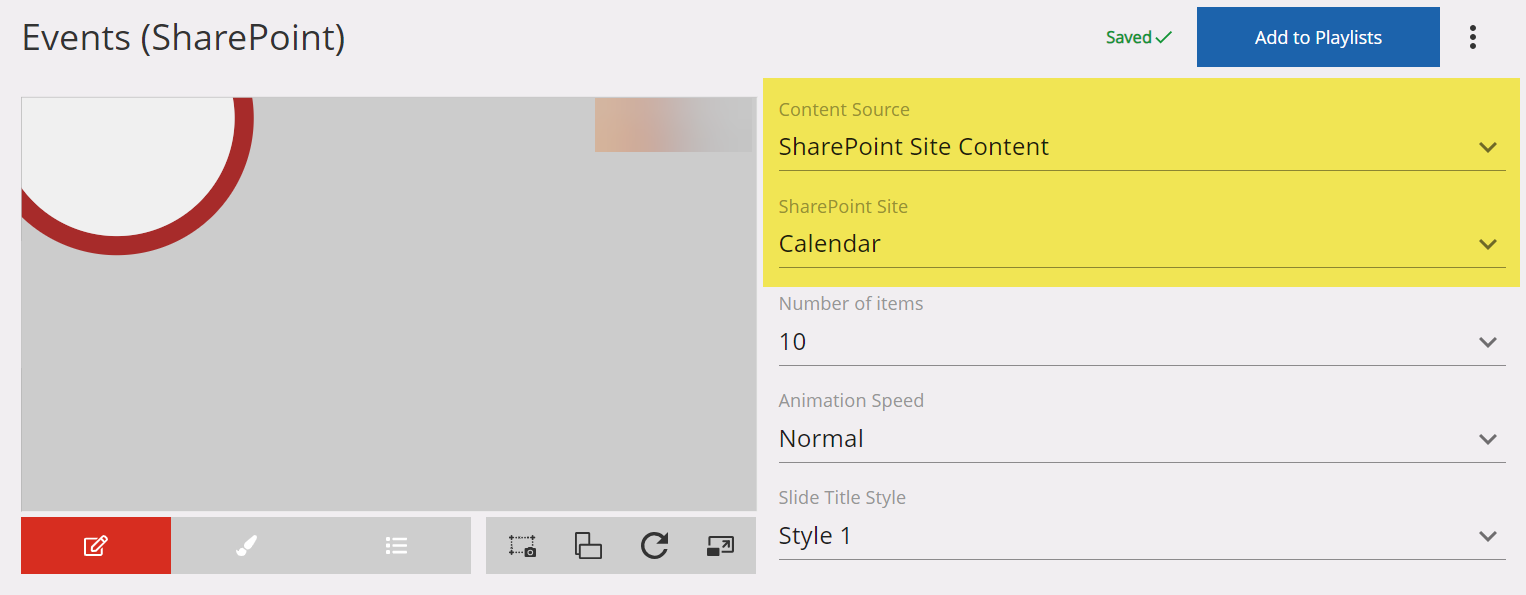
In the SharePoint Site dropdown, select a SharePoint Site Group that is linked to the calendar/events or site content you want to display in this slide
    • Announcements

    • Digital Signage Screen Maintenance

      A blank screen is more than a technical issue — it’s a communication gap. Your digital screens play a key role in workplace communication — sharing updates, celebrating wins and building culture. They don’t need constant attention, just a bit of ongoing
    • How to Use Custom Feeds (RSS) in Templates

      It’s not new — but it’s one of Vibe’s most underused superpowers! With Custom Feeds (RSS), you can automatically pull live content — such as news, blogs, or job listings — straight from external websites into your Vibe templates. Just choose a template
    • Smart Update: Advanced Scheduling

      We’ve completely re-developed Vibe's Advanced Scheduling feature to make it simpler, clearer, and more powerful. No more confusion around start/end dates and times or setting up repeats on specific days — the new UI makes it intuitive to plan and control
    • Sports Tournament Infotainment

      Get ready for the Women’s Rugby World Cup! We’ve updated our Sports Tournament Infotainment slide with fixtures and live leaderboard updates. Perfect for keeping your workplace in the spirit of the game. You'll find it in the Infotainment Category when
    • Template Design Guide

      Our Template Design Guide is for external designers, we recommend reviewing it if you plan to design your own Vibe templates: 👉 Vibe Template Design Guide This guide is designed to support brand and design teams in preparing template briefs—not building