Proof of Play - Reports
The Proof of Play Report gives you confidence that your content is being delivered as intended. It verifies when and where content has played, measures reach and frequency, quantifying exposure, and helping you demonstrate a culture of communication accountability and compliance.

Exclusive to Enterprise users. On the Pro plan? Consider upgrading to unlock this feature.
What is the Proof of Play Report?
This report records every instance your slide plays on connected digital signage devices, providing key information such as:
Slide Summary
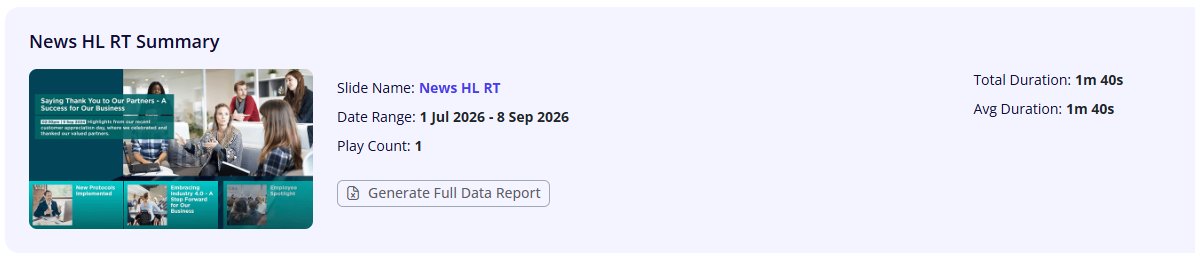
- Slide Name: The name assigned to the slide, allowing quick identification—clicking the link provides instant review of playback.
- Date Range: The period during which the report data was collected, indicating the timeframe for the playback records.
- Play Count: The total number of times the slide was played during the specified date range.
- Total Duration: The cumulative time the slide was played across all instances within the date range.
- Average Duration: The average length of each playback session.
- Generate Full Data Report: Click this button to initiate the report generation based on your selected slide and date range. It fetches the latest data for the specified parameters and displays the report. Please note that Data updates every 30 mins.
The report also includes detailed data on each playback instance, which helps you analyze content delivery:
- Slide Title: The name assigned to the slide
- Display Start Time: When each play occurred. Date formatted as MM/DD/YYYY HH:MM
- Duration in Seconds: Length of each playback session.
- Location Path: The device or display location.
- Playlist Name: The sequence or playlist involved.
- Time Zone: The local time zone of the device or display where the playback occurred.
Features of the Report Page
- Slide Name Selection: This dropdown allows you to select the specific slide or media content that has been played and for which you want to generate a report.
- Customizable Date Range: Here, you can choose the start and end dates for your report.
Please note that you cannot select a date earlier than 90 days ago, and future dates are not allowed. This restriction ensures the data remains relevant and within the recent activity window. - View Summary: Displays the summary of the selected slide within the specified date range
Other features include:
- Playback Records: View a timestamped, detailed list of all plays, including device location and content playlist.
- Export & Print: Download reports in Excel format or print them for documentation.
- Graphical Summary: Visualize total plays, viewing durations, and other important metrics for quick insights.
How to Use the Proof of Play Report
The Proof of Play Report can be opened from the System Settings menu on your Vibe Portal.
- Select the Slide Name: Click on the media or campaign you want to review. You can instantly view a preview of the content by clicking on the slide name.
- Select the Date Range: Use the date picker to specify the period you want to analyze. Please note that you cannot select a date earlier than 90 days ago, and future dates are not allowed.
- View the Summary: Click "View Summary" to display the playback summary for the selected slide and date range.
- Generate the Report: Click “Generate Full Data Report” to retrieve the latest playback data for your selected range.
- Confirm Report Generation: In the confirmation dialog, click "Generate Report". The system will generate the report and send a download link to your registered email address. The download link will expire after 7 days.
- Check Your Email: Once the report is ready, you will receive an email containing a secure download link. Click the link to access the report.
- Download, Save, or Print the Report: Download the Excel file and save it to your device. You can use the file for further analysis, sharing, or printing as needed.