Dashboard

NEW! Introducing the Dashboard – August 2026
We've designed a Dashboard to provide a clearer, comprehensive view of your Vibe environment!
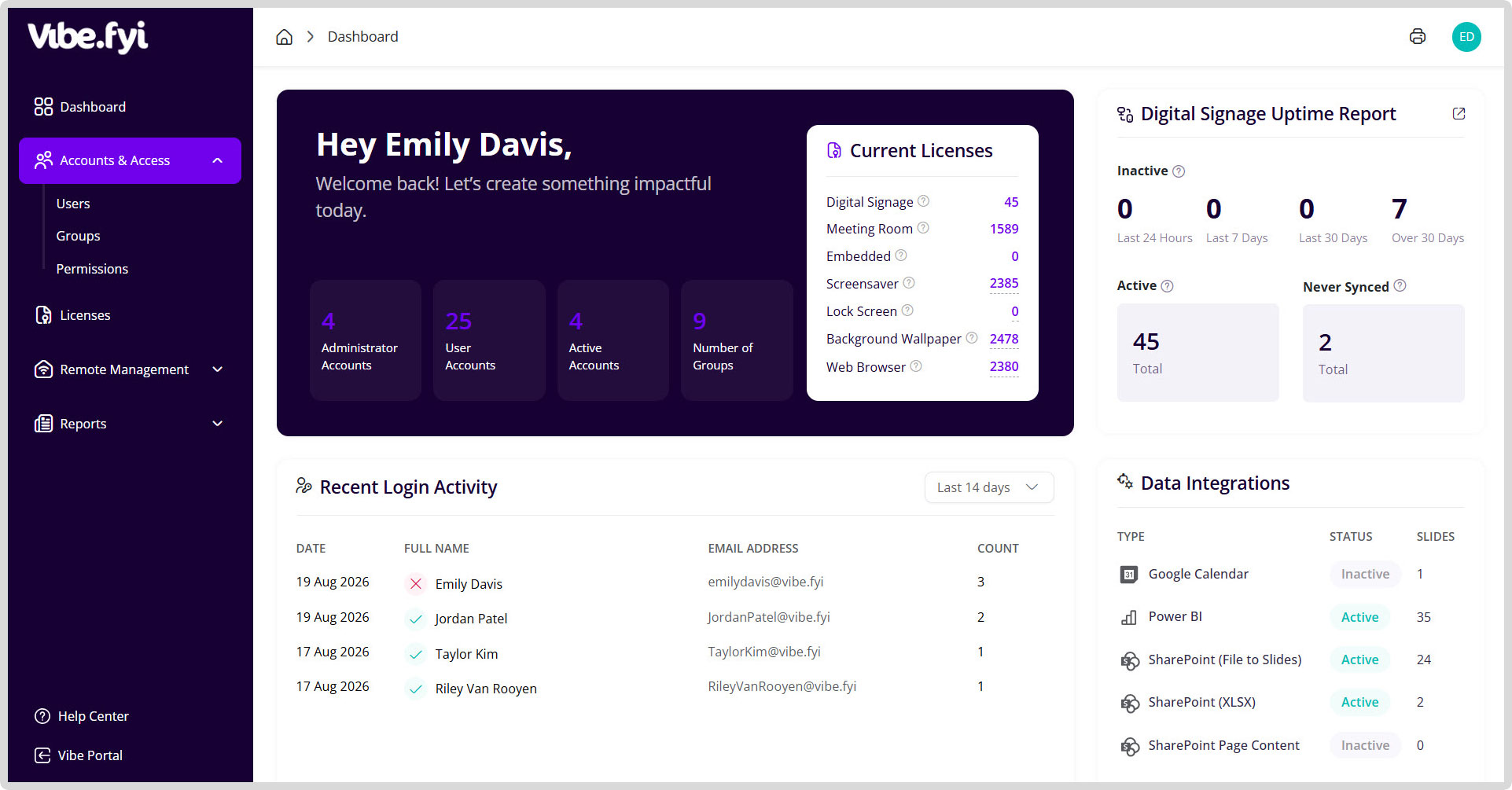
The Dashboard gives Vibe administrator a centralized view of your digital signage environment, user activity, licenses, integrations, and system health. It is designed to give administrators quick visibility into what is active, what needs attention, and what actions to take next.
Use it as a starting point for routine system checks or troubleshooting. It can help you identify:
- Devices that may be offline or have never connected
- Data integrations that are failing
- Unexpected login or user-account activity
- Licence availability and recently removed licences
- Recent Vibe product changes
The Dashboard summarises your environment; use the relevant System Settings area when you need to investigate or make changes.
Accessing the Dashboard
You can view and manage system-related information, directly from the System Settings' Dashboard.
- Log in to the Vibe Portal.
- Click System Settings from the Menu.

Can’t see System Settings? Access depends on your assigned Vibe permissions. Contact one of your Vibe administrators if the option is unavailable.
Dashboard Features
Welcome & Summary Metrics
At the top of the dashboard, a welcome panel greets you as a logged-in user and displays high‑level system metrics.
Summary Cards
These metrics help administrators confirm system usage at a glance and provide a quick snapshot of your environment:
- Admins – Number of administrator accounts configured
- Users – Total active users
- Accounts – Number of accounts currently in use versus total available
- Groups – Number of device or user groups configured
Current Licenses
This panel helps ensure correct license allocation, highlights potential shortage and shows all active license types assigned in the system. Each license entry displays:
- License name (for example, Digital Signage, Meeting Room and other licenses)
- Count of licenses currently assigned
Digital Signage Uptime Report
Easily identify persistent offline issues versus short‑term connectivity problems and gain visibility into device health and connectivity over multiple time ranges.
- Status Categories
- Inactive – Devices not reporting during the selected period
- Active – Devices currently online
- Never Synced – Devices created but never connected
- Time Ranges
- Reports are grouped by:
- Last 24 Hours – Devices that have not reported for 1 to 24 hours.
- Last 7 Days – Devices that have not reported for 1 to 7 days.
- Last 30 Days – Devices that have not reported for 7 to 30 days.
- Over 30 Days – Devices that have not reported for more than 30 days.
Recent Login Activity
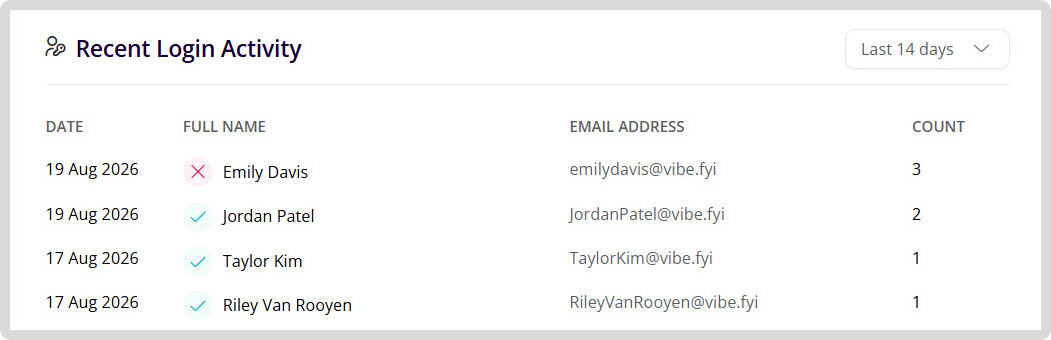
This section supports security monitoring and helps administrators identify unusual or excessive login attempts. Reports can be extended up to 90 days from the filter option. The Recent Login Activity table tracks authentication activity across the platform:
- Login date
- User name
- Email address
- Number of login attempts
This section supports security monitoring and helps administrators identify unusual or excessive login attempts. Reports can be extended up to 90 days from the filter option.
Product Releases
Administrators can review this section to stay informed about new capabilities and resolved issues. It lists recent platform updates and fixes:
- Date of release
- Detail of the change (feature update, improvement, or bug fix)
- Reference ID with a status label such as Task or Bug
Data Integrations
This section helps quickly diagnose content feed issues on digital signage. This panel shows the status of third‑party services connected to Vibe and the number of slides using this application.
Status Indicators are:
- API Fault – Integration is configured but currently failing
- Inactive – Integration is available but not actively used
Find out more information on Vibe's Integrations
New & Deleted Users
If no changes have occurred, the panel will display an informational message indicating no recent activity. Icons show recent changes to user accounts within the selected time period:
- Newly created users (+)
- Deleted users (-)
Deleted Licenses
The Deleted Licenses panel displays recently removed licenses and allows you to easily restore them using the Reactivate button.
FAQ
Why can’t I see System Settings or the Dashboard?
Access depends on your assigned Vibe permissions. If System Settings is unavailable, contact one of your organisation’s Vibe administrators to confirm whether your account has the required access.
How often should administrators check the Dashboard?
Checking it regularly can help you identify potential issues before they affect workplace communications.
Consider reviewing it:
- As part of a routine system-health check
- After creating or removing users and licences
- When a screen is not showing current content
- When integrated content is not updating
- Following an unexpected login or account event
- Before investigating a reported platform issue
What is the difference between Current Licences and Deleted Licences?
- Current Licences shows licence types that are active and assigned in the system.
- Deleted Licences shows licences that were recently removed and may be available for reactivation.
If a licence is unexpectedly missing from the Current Licences panel, check Deleted Licences before creating or requesting a replacement.
How do I restore a deleted licence?
- Locate the licence in the Deleted Licences panel and select Reactivate.
- After reactivating it, check the appropriate licence-management area in System Settings to confirm its status and configuration before relying on it for content delivery.
Why isn’t a deleted licence appearing in the panel?
The panel is intended to show recently removed licences. If the licence is not listed:
- Confirm that you are looking in the correct Vibe environment.
- Check whether the licence is still active under Current Licences.
- Confirm that another administrator has not already reactivated it.
- Review the relevant licence-management area in System Settings.
- Contact Vibe Support if the licence still cannot be located.
Will reactivating a licence immediately restore content to a screen?
Reactivation restores the licence within Vibe, but the associated device, location, playlist and connectivity should also be checked.
If content does not return as expected, confirm that:
- The licence is active
- The correct location is configured
- A playlist is assigned
- The device is connected and syncing
- The relevant player or screen is online
Does an Inactive status always mean the screen is broken?
No. An inactive device may be powered off, disconnected from the network, outside its normal operating hours or experiencing a temporary connectivity issue.
Compare the available time ranges—such as the last 24 hours, 7 days, 30 days or more than 30 days—to determine whether the issue is recent or ongoing.
Does a high number of login attempts mean an account has been compromised?
Not necessarily. Multiple attempts may result from an incorrect password, an expired session or a user experiencing difficulty signing in.
However, unexpected activity should be reviewed. Confirm that the account belongs to a current user, check whether the user recognises the activity and follow your organisation’s security procedures if the attempts appear suspicious.
What does API Fault mean under Data Integrations?
API Fault means the integration has been configured but is currently failing.
Check the affected integration and any slides relying on it. The issue may involve authentication, permissions, service availability or the external data source.
Does the Dashboard automatically fix reported problems?
No. The Dashboard highlights activity, status and potential issues, but it does not automatically resolve them.
Use the appropriate System Settings, licence, user, integration or device-management area to investigate and take action.