Site Settings: Account Security
Within Account Security, you'll find essential account security features in one centralized section. Administrators can configure authentication methods, password requirements, and account lockout policies to help protect user accounts and maintain platform security.
How to access Account Security
To access Account Security, follow these steps:
- Navigate to System Settings from your Vibe Portal.
- From the menu, select Site Settings.
- Click Account Security to open the page.
Account Security Features
The page includes the following sections:
1. Single Sign-On (SSO) – Vibe Staff Authentication
Allows administrators to authenticate a Vibe Staff account with write permissions for Azure apps.

Kindly refer to this article for more detailed steps on SSO: Entra (Azure) Single Sign-on
2. Two-Factor Authentication (2FA)
Provides an additional layer of account security by requiring users to complete a second authentication step when logging in. Administrators can configure the enforcement policy and recommended authentication apps.
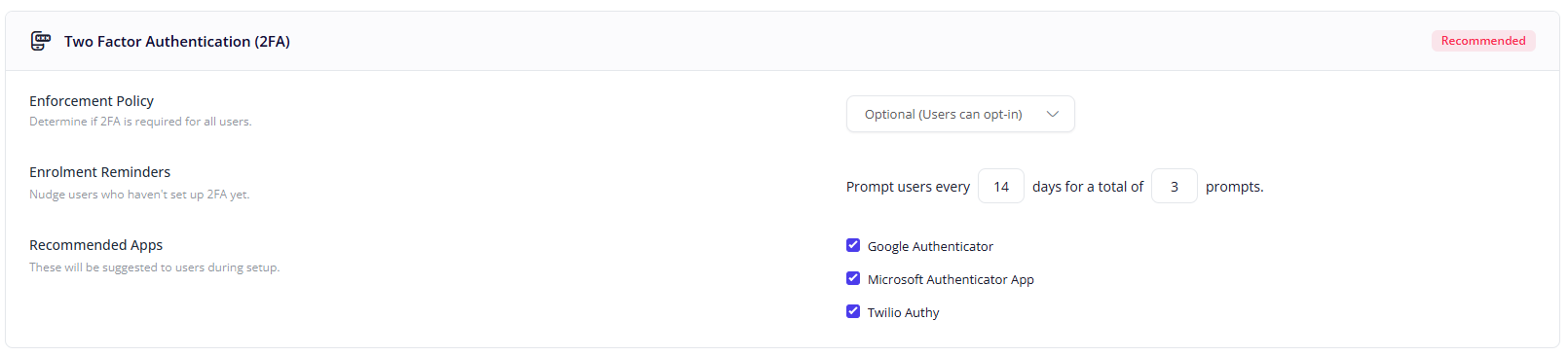
- Enforcement Policy: Choose how 2FA will be applied to user accounts. Available options include:
- Disabled: Two-Factor Authentication is turned off.
- Optional (Users can opt-in): Users can choose whether to enable 2FA for their accounts. When selected, the following additional settings become available:
- Enrolment Reminders: Set how often users who have not yet enabled 2FA will receive reminders.
- Reminder Frequency: Specify the number of days between reminders (e.g., every 14 days).
- Total Prompts: Set the total number of reminders users will receive (e.g., 3 prompts).
- Recommended Apps: Select which authenticator apps will be suggested to users during setup.
- Mandatory: Require all users to set up and use 2FA when accessing their accounts. Enrolment reminders are not displayed under this policy.
- Recommended Apps: Select the authenticator applications that will be suggested to users during 2FA setup. Available options include:
- Google Authenticator
- Microsoft Authenticator App
- Twilio Authy

Enabling 2FA is strongly encouraged to provide an additional layer of protection against unauthorized account access.
Learn more about Two-Factor Authentication (2FA)
3. Password & Account Lockout Policy
Allows administrators to set password security requirements and control login attempts to protect user accounts.
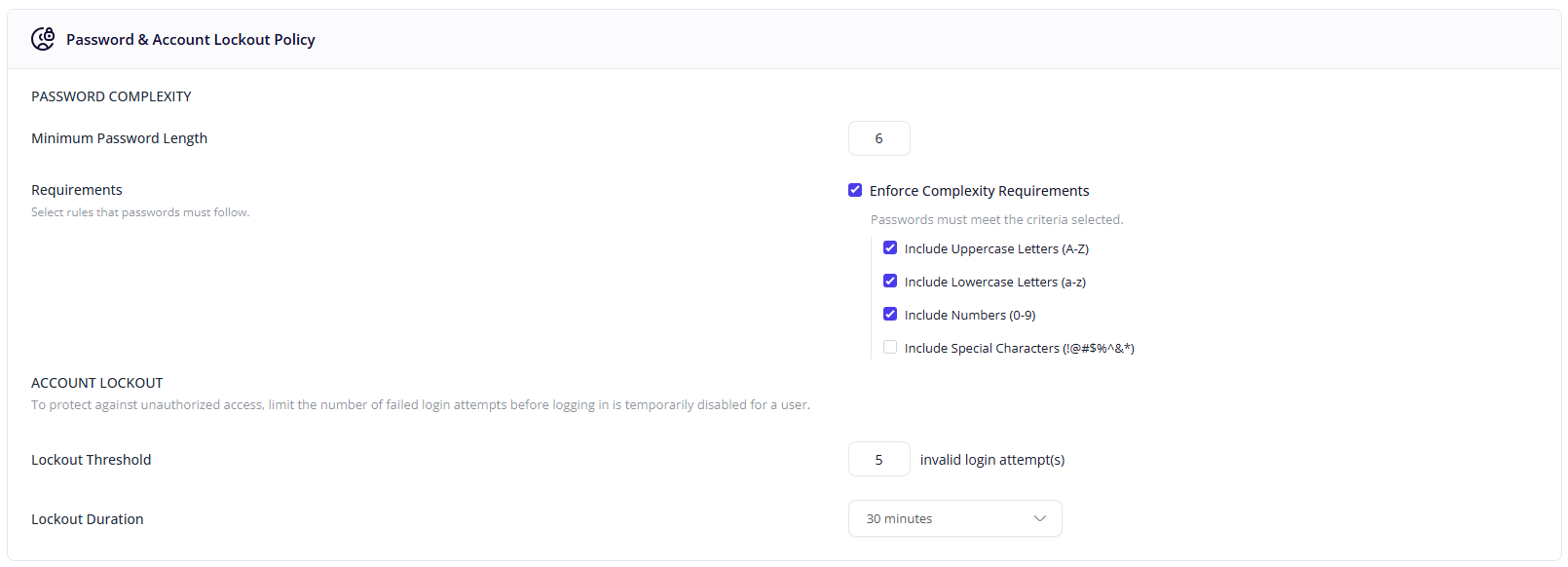
Password Complexity
Configure the minimum password requirements for all users.
- Minimum Password Length: Set the minimum number of characters required for passwords.
- Enforce Complexity Requirements: Enable this option to require users to follow selected password rules.
- Include Uppercase Letters (A–Z): Require at least one uppercase letter.
- Include Lowercase Letters (a–z): Require at least one lowercase letter.
- Include Numbers (0–9): Require at least one number.
- Include Special Characters: Require at least one special character.
Account Lockout
Configure restrictions to help prevent unauthorized access through repeated failed login attempts.
- Lockout Threshold: Set the maximum number of invalid login attempts allowed before an account is temporarily locked.
- Lockout Duration: Set how long an account remains locked after reaching the specified threshold.