Featured Listings 50/50
Video : Template Tour
Content Source
Web Portal
- Create a slide using the Feature Listings 50/50 template.
- In the slide editor, select Web Portal in the Content Source dropdown
- Select the Corresponding Tab: Start by choosing the tab where you want to add your content— Listings or Agents
- Add images to your slide:
- Click [Add Content] to upload data via the content editor and click [Save]
OR, - Drag-and-drop one or more images via the Upload field.
- Repeat steps a and/or b to add more images.
- When you are ready to go live, add your Feature Listings slide to one or more playlists.
- Content Editor options include image upload (JPG/GIF/PNG/GIF, <30 MB) and an optional title/summary.
- All changes in the slide editor are auto-saved.
File Upload (XLSX)
- Create a slide using the Feature Listings 50/50 template.
- Select File Upload (XLSX) in the Content Source dropdown and download the default spreadsheet.
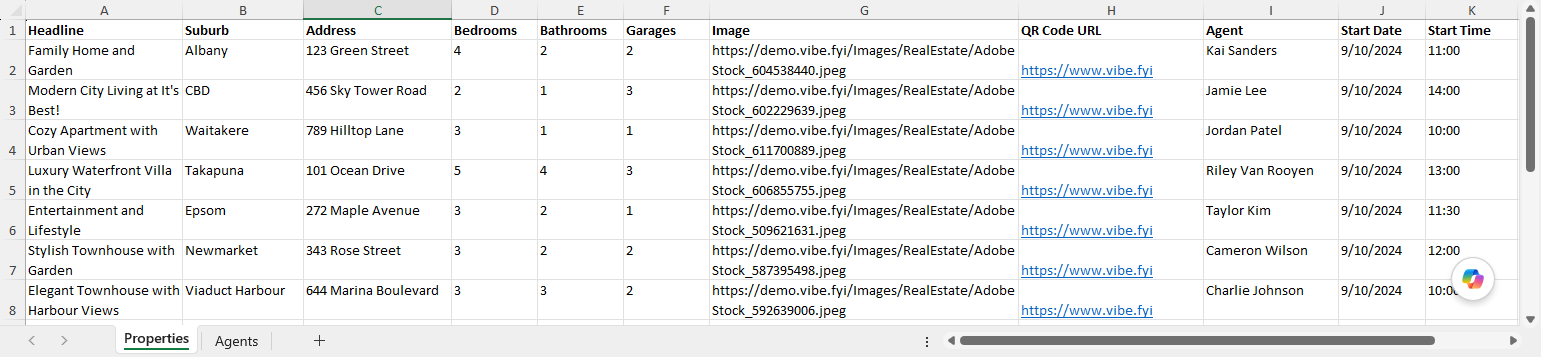
- To manage listings using the XLSX data template, enter real estate details into the available columns (one listing per row).
- Properties
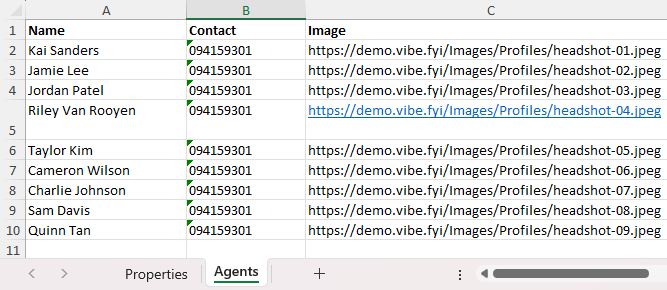
 Note: Ensure that the Agent Name matches the Name input from the Agents Tab
 - Agents
- Save your XLSX file locally and upload the saved file into the slide editor.
- When you are ready to go live, add your slide to one or more playlists.
Google Sheets
- Vibe Portal - Download the VIBE-DATA-TEMPLATE_RealEstateFeaturedListings5050.xlsx.
- Google Drive - Upload the VIBE-DATA-TEMPLATE_RealEstateFeaturedListings5050.xlsx to your connected Google Drive folder and add your data.
- Vibe Portal - Choose Google Sheets in the Content Source dropdown and select your saved Google Spreadsheet.
 Recommended reading: Prep your Google Sheets
SharePoint (XLSX)
- Vibe Portal - Download the VIBE-DATA-TEMPLATE_RealEstateFeaturedListings5050.xlsx.
- SharePoint - Upload the VIBE-DATA-TEMPLATE_RealEstateFeaturedListings5050.xlsx to your connected SharePoint folder and add your data.
- Vibe Portal - In the slide editor, choose SharePoint (XLSX) in the Content Source dropdown and select your saved Excel file.
XLSX Data Template
Properties Tab
Agents Tab
Supported Data Formats
Properties Tab
| Data Column | Supported Formatting |
| Headline | Free format. Bold and underline formatting is supported. |
| Suburb | Free format. Bold and underline formatting is supported. |
| Address | Free format. Bold and underline formatting is supported. |
Bedrooms, Bathrooms, Garages | Numeric only |
| Image | Valid web URL (png,jpeg,jpg.gif) |
| QR Code URL | Valid web URL - Enter the destination web address to instantly generate your custom QR code |
Agent Name | Free format. Should match "Name" data in Agents Tab |
Date | DD/MM/YYYY or MM/DD/YYYY  Start Date and End Date are optional |
Time | HH:MM (24hr) or HH:MM AM and HH:MM PM Start Time and End Time are optional |
Agents Tab
| Data Column | Supported Formatting |
| Name | Free format. Bold and underline formatting is supported. |
| Contact | Free format. Bold, underline and bullet or number list formatting is supported. |
| Image | Valid web URL (png,jpeg,jpg.gif) |
Design Tips
- Shape Your Image: Use the shape options to instantly transform images into square or rounded/circular layouts, depending on the design style and content focus.
- Control Image Fit:
- Fit / Contain keeps the entire image visible within the frame.
- Fill / Cover fills the entire frame for a cleaner look, but may crop parts of the image.
- Enhance with Animation: Apply image animation effects such as Fade, Zoom, etc. to add visual interest and guide audience attention without overwhelming the slide.
Use-Case Scenario
Coordinating Property Demos Across Multiple Agencies
A private owned real estate company uses Vibe.fyi to present dynamic property listings across lobby screens, window displays, and showroom tablets. Each location pulls data to showcase current listings, including high‑impact images, prices, and key property details.
Using Vibe.fyi, they publish a Real Estate template to all screens across branches. A feed from the real estate site updates the feed continuously, ensuring listings are current and accurate.
Because the same template is deployed across offices, windows, and in‑person showrooms, every viewer receives a consistent experience—no more inconsistent listing details or missing images. The marketing team can rapidly push highlighted properties, seasonal promotions, or upcoming open houses to all screens with a single publish, keeping prospective buyers informed and engaged without flooding agents with separate emails or requests for updates.